Showing posts with label Kindle. Show all posts

Wednesday, February 8, 2012

Wondering on Wednesday: Magazines on E-Readers

[This post is for those of you with the Kindle Fire, Nook Color or Nook Tablet. Unfortunately, the e-readers that don't work as mini tablets don't have this feature.]

So you have that new Kindle Fire for Christmas and you're all excited because you can now get all of those magazines your subscribed to onto your Kindle to take anywhere you want to go! But wait, as you're looking through you're noticing two types of magazines: your subscripions and the apps. Now you're all confused. What's the difference? How does it work? Do I even want to bother? Well today I'm going to answer your questions concerning magazines.


There found there are 2 types, the first one being the ones you subscribe to. These will show up just like the magazines you buy in the store. I’m subscribed to a couple of food magazines and Rachael Ray and I really enjoy reading them from my Kindle. The second type is the kind that you purchase through an app.


Say you find an app that is the name of a magazine, like Shape and Glamour (just ones I’ve seen off the top of my head- I’ve seen others), Amazon has it for free. You download it, bring up the app on your Kindle and it will ask you to subscribe to this magazine through the website. So you pay through the website instead of through Amazon. The super cool thing about these, is that, for example: it’s a fitness app. And it’s telling you about ab exercises you can do, well it will show you a picture and have words describing what to do like your typical magazine would, but when you clicked on this picture, it would actually show you a video of how to do the exercise. Normal magazines won’t do this, just the ones you go through the app for.

Meg has these and LOVES them. She's a huge magazine reader too, but to see how to do what the magazine is talking about brings this technology to a whole new level! I know I talked mostly about Amazon but it works the same way for Barnes and Noble. What has been your experience with magazines through your Kindle or Nook? Which ones do you follow?

Wednesday, February 1, 2012

Wondering on Wednesday: Deleting Kindle Books

For a while I was a bit confused on how Amazon worked. I mean, if I deleted something from my Kindle was it permanently gone forever? What about those books that I got for free that turned out to be awful and I really do want to get rid of? Today I hope to answer those questions for you and a few others.

When you delete a book using your Kindle device, the book is removed from your Kindle, but not from your library. Since Amazon uses a cloud system, it's as if you're going from carrying the book around everywhere you go to putting it back onto the bookshelf when you're finished reading.
To do this on your Kindle Touch or Fire, simply hold on the title or picture of the book and when the bubble comes up, press "Remove from Kindle". On your basic Kindle or K3 Keyboard, highlight the book you want to remove, right click the square and scroll down to "Remove from Device". This book will no longer show up on your Kindle.  They will continue to be in your archieved items, but still not technically on your e-reader taking up space.
This works the same way for apps or games.

When you want to actually delete a book that you never, ever want access to ever again, you have to go onto Amazon's website. From there, log in, go to My Account, scroll down to Manage Your Kindle. It will load to a page where you see the tons of books you have already downloaded and on the right side there will be an "Action" tab. Click that tab then press "Remove from Library". It will ask you if you're absolutely sure, because if you ever want access to it again you'll have to repurchase the item, and you can press Yes.

This works the same way for any apps, magazines or blogs you may have too. On the left of the page you can see a box that says "Your Kindle Library", and beneith it lists the types of data the Kindle can hold. Just click on what you want (magazines, blog, ect) and use the action tab to unsubscribe or remove the item from your device. Doing this means you will no longer be charged your monthly fees for your magazines or blogs you followed that you don't want to follow anymore, and obviously you won't get any more updates from that media.

So getting items off your Kindle isn't nearly as difficult as it may have seemed! Have you ever had any issues? do you have any questions? Also, keep the questions coming in because that's what Wednesday's are all about: helping you become more informed on the things you can do on your e-reader!

Until next time,

Wednesday, January 18, 2012

Wondering on Wednesday: Finding the Kindle For You

Choices, choices choices....
I know that with so many Kindles on the market now, it's hard to know which one you're looking for. I've been asked this question many times so my goal is with this post is to give you some of the answers directly that you've been looking for. That way it saves you from searching and digging things out yourself.

Basically, if you're looking for a basic reader, you have 3 options.
1) The 79$ Kindle. The most basic Kindle, no touch, no keyboard.
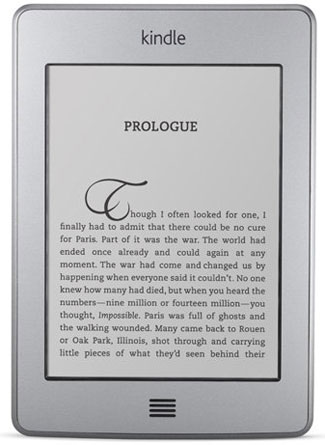
2) Kindle Touch. $99, $149. Literally, your normal Kindle reader, all touchpad.
3) Kindle Keyboard. $139, $189. Your normal Kindle reader with a keyboard.


Then you have a couple of other options, 3G + WiFi, or only WiFi. I have the Kindle Keyboard with 3G + WiFi, but to be completely honest with you, it's not entirely necessary. WiFi is everywhere you go- your home, your workplace, coffee shops... any of those places you can download books. 3G simply lets you download anywhere you want to go. Period. Obviously to get 3G and WiFi, it's a bit more pricey than simple WiFi.

Another couple of options you have is ads or no ads. The ad supported Kindles run a bit cheaper. These ads are placed in the sleep screen and at the bottom bar (I'd say about an inch big- if that) of your library screen. These ads will NEVER be in the middle of your book. So if you don't mind seeing a few ads here and there, it could be a cheaper option. If it bothers you, it's only like 20-30$ more to go without.

But don't necessarily discount the Fire. I also have it, and I tend to use my Fire more at home while my K3 Keyboard at work, it's still a snazzy little tablet with the ability to not only read but watch movies, play music/ games and run documents on.  To see the my full review of the Fire, click here. To see the (basic) specs, click here. Price runs at $199.

And just because I don't to leave it out, there is a Kindle DX, which is the Kindle 3 Keyboard only like 2-3xs the normal size. Which I personally don't think you need one that big, but it's all preference. (Plus it's like $379...)

Does that answer your questions? I hope I helped. Let me know if there's any other questions I can help with.


Wednesday, December 7, 2011

Wondering on Wednesday: Uploading Files to Kindle

Hello everyone!
Today I'm going to share with you how to upload PDF or MOBI on your Kindle. You think this sounds like a simple task, but as soon as I got my Kindle Fire I was so confused.

The Kindle only accepts MOBI and PDF files.
Now there are a couple of ways to go about doing this. For all devices (other than the Fire) you can use the USB cord and plug your Kindle into your computer and simply drag and drop the files into your Kindle folder. When you unplug, assuming you're under WiFi, your Kindle will refresh and the books will appear. For me using my Kindle 3 Keyboard, this worked 90% of the time. But when it didn't....

Every Kindle has an e-mail address. So if you have multiple Kindles, you have multiple e-mail addresses. To find this e-mail address go to amazon.com, click on "Digital Content" in the top right hand corner and log in if you haven't already. From there, click on "Manage your Kindle", then "Personal Document Settings" on the left side and you will see your Kindle address.
For instance mine is : sapphire2277_44@Kindle.com for my Fire and sapphire2277@Kindle.com for my K3 Keyboard.
Now open your normal e-mail account, attach the file you want to send to your Kindle and Send the e-mail. When you're under WiFi it will show up. If you have a Fire you may need to go to "Settings" and press "Sync" for it to show up, but it will.

So anytime you get a book on Smashwords, you can get it to your Kindle this way. Or if you have your grocery list saved on your computer and you want it on your Kindle you can do it this way as well. Also, something else to note is that with smaller files you won't be charged for sending the files over, but if a file is over a certain size, you could be charged. You can also set it up where Amazon can't charge you over a certain amount for transferring data. But in all honesty, in every situation where I've sent personal documents to my Kindle, I've never had this issue. And I've had a ton of books, lists and everything else from being a blogger. So typically, it's not something you should worry about, but it's something I still wanted to throw out there.

I was going to include how to do this on the Nook, but they don't accept files as well as the Kindle does therefore the process is a bit more complicated. I'm going to do some more research and play with M's Nook Color and let you guys know in a couple of weeks. Or if you have a Nook and know how, teach us! We'd love to hear from you.

Until next time,

Thursday, November 3, 2011

Amazon Prime: Kindle Lending Service

For all of you Amazon members who have have Prime membership passes, this is for you.

You can now borrow Kindle books for FREE! They currently have around 5,000 to choose from including 100 of that being New York Times Bestsellers. To do this you go through the Kindle Owners Lending Library. There are no due dates, though you are only able to have 1 book out at a time.

Prime Membership costs $79.00 a year. Although if you're a student you can get it at a discounted rate of $39.00 a year here.

I'm officially thinking about getting the service now, although if I were to go with the Kindle Fire this Christmas... I probably would anyway.
What do you guys think?

Monday, October 10, 2011

Making Notes on Your E-Reader

I'm always baffled when I learn new things that my Kindle can do, for some time I've known that my e-reader had the ability to take notes, but I hadn't actually tried it. Now that I've started highlighting and taking notes, I'm wondering why I never did this before! Hopefully this this will be helpful to all of you! The following are the steps that you need to know to make notes on your Kindle or Nook.

For the Nook Color:

To highlight within a book, open your book and find the passage which you want to highlight. Click on the word you wish you start with and drag your finger to the end of the selection. A tool bar will pop up where you will click "Highlight".
To make notes from that highlight, select "Notes" from the tool bar and type what you want then select "Post".
And unfortunately, from everything I've seen, you can't bookmark a page on any Barnes and Noble's e-reader. It's in their policy somehow. If someone knows differently, comment and let me know.

For your Nook:

To do this on the traditional Nook, click on your book you want to work in, click the menu button then "Highlight". A cursor will appear, touch the screen to the place you want to highlight and click "Begin Highlight." Use the arrow pad to scroll across to the end of the passage and press "End Highlight".
You can make notes from there by clicking "Add Notes" in your menu.

A couple of other little things to know are that your notes on the Nook won't transfer to the Nook Color (for now at least... they could update and fix this in the future.) and many magazines don't support highlighting or notetaking.

For the Kindle:

(These tips are for Kindle 3, I'll be updating everything once the Kindle Fire and Touch come out.)

To highlight words/ passages of a book, place your cursor on the work you want to start the highlight and hit the center button. Now move the cursor over until you hit the end of the passage and press the center button again. Now the passage will appear with a small underline!

Also, if you want to bookmark a page for future use hit Alt + B, you'll see a little tab folded over in the right upperhand corner. To unbookmark a page, just hit Alt + B again.

And while I didn't find a way to do this on the Nook (if I do find a way, I'll update this page and let you guys know.) You can also take notes on your Kindle outside of a book using a PDF type file. Here's how to do that:

1) From your computer upload a Wordpad document and save it as whatever you want it to be, I just used "Notes" as the title.
2) Open the folder you saved this document in.
3) Now plug in your Kindle using your USB cord.
4) Bring up the folder with all of your Kindle things on it. If it doesn't come up right away you can access it by going to My Computer -> Kindle -> Documents
5) Now go back to the folder you saved the document in, and drag and drop your Notes Wordpad page to your Kindle Documents page.
6) Unplug you Kindle, watch it download your new items.

From there you can go on your new document from your Kindle and click on "Menu" then "Add Notes". Type in what you want, and make sure you save your item. Then click "Home" and click on "Notes" again to see your new notes!

Now that you know how to do this on your e-reader, will you utilize it? As a college kid, I'm thinking I'm going to try and get my books on my Kindle next semester and start doing this even more. (Talk about a load off! My Kindle is much lighter than my 50 lbs books!)  What do you guys think?

Thursday, September 29, 2011

Just Curious...

For those of you who are dying (like me) to get the Kindle Fire, do you think you'll still use your old Kindle or abandon it forever?

I was talking about this subject last night with my brother and I know where I stand, but I'm curious as to what all of you think!

-J

Wednesday, September 28, 2011

The Skinny: Kindle Touch & Kindle Fire

Today Amazon announced not just 1 but 2 new versions of the Kindle. Both are due to be released in November, just in time for the holiday season and you can already pre-order these items from Amazon's website. 

Kindle Touch


Kindle touch is pretty much the Kindle we already know and love, simply without the keyboard! To turn pages, simply tap the screen. A new feature Amazon has added to this device is the X-Ray.
"Amazon invented X-Ray, a new feature that lets customers explore the “bones of the book.” With a single tap, readers can see all the passages across a book that mention ideas, fictional characters, historical figures, places or topics that interest them, as well as more detailed descriptions from Wikipedia and Shelfari, Amazon’s community-powered encyclopedia for book lovers. " -Amazon.com
Prices:
Kindle Touch Wi-Fi with Ads $99.00. Without Ads $139.00.
Touch with Wi-Fi/ 3G with Ads $149.00.  Without Ads $189.00.

Kindle Fire


Now THIS is something completely new. Amazon is officially taking on the Nook Color with this colored Android powered reading tablet. Here you have can read, browse the web, watch movies, listen to music or play Angry Birds. Not only can you read books, but you can now have childrens books with beautifully colored pictures and magazines with print and photos. I have to be honest, I am super excited for this.

The screen is gorilla glass and the device itself is an inch bigger than the Kindle 3 or Kindle Touch. It has 8 GB of internal memory, or enough for 80 apps plus 10 movies, 800 songs or 6,000 books. The Kindle Fire runs off of Android 2.1 and a duel-core processor. Amazon has its own App market where you find and purchase Apps. They also use their own web browsing service called Amazon Silk that's supposed to not only be super fast, but have a pretty good memory of where you usually go when you're on the web to get you where you want to go faster. Battery life lasts for about 8 active hours, give or take depending on what you're using it for.

The Kindle Fire has no 3G. Only Wi-Fi that you can use from any hotspot area with the exception of peer to peer hotspots (like creating it from your cell phone).

Price: $199.00 and comes with 1 month free of Amazon Prime.
________________________

So has Amazon just made your Christmas list for you? I'm thinking they may have created mine. There's just a couple little things I want to throw out there. With the research I've done, I'm hearing buzz that there may be something even better in the works than the Amazon Fire sometime after Christmas. And even cooler than Amazon Fire? I'm wondering what the heck that could be.

Also, maybe you or a family member don't like touch screens and you'd rather stick with the Kindle 3. Those prices have gone down to.
Amazon Kindle 3 with Wi-Fi and Ads $99.00. Without Ads $139.
Kindle 3 with Wi-Fi and 3G with Ads  $139.00. Without Ads $189.00.
(Prices seem off to me, I'll check back later to make sure that Amazon hasn't changed them...)

What do you think about these developments?
Talk to me!

Monday, September 26, 2011

Renting Kindle Books from the Library

If you haven't heard yet, late last week Amazon broke the exciting news that libraries could now lend Kindle books.

Some high points from their announcement included books being sent to your device through Whispernet, Facebook and Twitter abilities to share favorite passages or quotes, real page numbers so you can follow along in book clubs and what I thought was probably the most cool, through Whispernet, Kindle has the ability to remember your highlights and notes within the margins so that next time you rent, lend or buy the book, they're there for you to see! (Don't know how to leave notes in your Kindle book? Don't worry, I'll show you how later this week.)

So now that we know that we can do it, how do we go about getting the books? How do we know if our library even has this feature? The best way to find out all of this information is to go to overdrive.com. This is the website that even the libraries use. Now from the link here is where you need to go...

1) Find the box that says "New to downloads?" and put in your zip code.
2) This will lead you to a page where you find the closest libraries to you, click on the one you typically go to.
3) Now click on the link it provides for you. For instance mine is:http://kyunbound.lib.overdrive.com/

From there you are able to browse books that are available for lending. If a book is there but isn't currently available you can choose to be put on the wait list. If your book isn't there at all, be patient, with this being a new thing for Kindle, more and more books are being added but with time. Back to the point- when you find a book you want, click on the title, then click on "Use on Kindle and Free Kindle Apps". You will then be directed to Amazon's website where you can log in, put in your library card information (You are required to have a library card.) and you can then have the title transferred to your device.

A few things that you should know is that the length of a loan is determined by the library. Also, to download a book you must be on a wi-fi connection. Even though some Kindles can download books from the store using 3G, library books cannot be transferred this way. To see the status of the library book you're waiting on, you can go to Amazon's webpage, click on "Your Account" in the top right corner, scroll down to the "Digital Content" box and click on "Manage Your Kindle."

Got a Nook and not a Kindle? Don't fret! We didn't forget about you. :) Next week we'll have a post explaining your process step by step as well.

So what questions do you have? Have you tried to get a Kindle book from your library yet? How well do you think this process works? What would you like to see happen to make things more efficient?

Can't wait to hear from you guys,
J

Thursday, September 22, 2011

Kindle Books Now Availible to Libraries!

Yesterday Amazon announced this exciting information that so many Kindle owners have been anxiously awaiting for! Click here to see the official release via Kindle Post.

As I figure out more and do the process myself I'll make a post more in depth. But what do you guys think? Is this it, is this what we all have been wanting? Are your libraries offering Kindle books in your area? I'm still checking around to see about mine but I'm pretty pumped.

-J

Saturday, September 10, 2011

Kindle Game Sale

So I know we generally post all about books, but it's still along the lines the Kindle, which is book related!

Anyway, a TON of Kindle games are on sale for super cheap this weekend until Monday, September 12th. So click here to check that coolness out. :)

Also! Don't forget we still have that Elizabeth Sharp giveaway going on for her book Natural Selection. Spread the word.

I hope you guys are having a fantastic weekend!
-J

Thursday, September 1, 2011

Labor Day Kindle Sales!

Yeah I said it! Who's as pumped as I am?

Amazon is doing a sale that's 100 books for $3.99 and under, the link is here.
And the other link here, is a bunch of indie books for sale for $0.99!

So far I've bought 4 books... and I'm still digging for more! Sorry Nook readers, I looked but I couldn't find anything for you guys. :(

Anyone else hear of other sales going on this weekend for books?

And make sure you stayed tuned because we will have Elizabeth Sharp on The Ink Puddle for an interview and a GIVEAWAY of her new book Natural Selection next week. Trust me, it's one you're going to want to read! (I couldn't put it down..)

See you tomorrow!
-J

Monday, August 22, 2011

Accidents Happen - Part 3!

Busted screens
Whether your e-reader was dropped or hit by something wrong in your purse or carryon bag, this can usually be fixed. All Kindles, whether bought in a retail store or online at Amazon’s website, automatically have a one year warrantee. In this one year time period you can replace one Kindle free of charge. All you have to do is call Amazon’s customer service line at 1 (800) 201-7575 and tell them your situation. They will then send you a replacement Kindle within two business days, along with a UPS tag so you can send your old Kindle to them.  Usually all this is done with little to no hassle and no rush on sending the old Kindle back!
And of course, all of your purchased books can be found in your achieves. And next week I will have a post on transferring collections, whether that be from a Kindle 2 to a Kindle 3, or from a broken Kindle to replacement one.
Note: I have heard stories of the customer service rep saying “Anything that happened to your Kindle that wouldn’t have happened to a normal book if it was in that situation, we’ll replace. They’re supposed to be more durable than books.” Then I’ve heard the other side saying “I’m sorry, there’s nothing we can do because it was done was busted inside your bag (purse, carryon, ect).”
Point of this story: be on the safe side and don’t mention that your Kindle was broke in a bag. You never know who you’re talking to on the other end.
Every Nook you buy also has a one year warranty automatically. Barnes and Noble is a bit more selective than Amazon on replacing your e-reader though especially in broken screen situations.  You can contact B&N at 1 (800) 843-2665, talk to a service representative and if they are willing to replace your Nook, they will pay for shipping to send you the replacement as well as for you to send the broken one back.
You could also replace the cover yourself. You can find the screen on Ebay, the model number is: LG LD070WS1. It’s about $69 plus shipping but you’ll also need to get a kit give you the tools you’ll need to replace the screen. Personally, this route is more difficult, but it may be worth the trouble. If you want to see how click here to watch a video we found on YouTube.
If they don’t offer to replace your Nook and you don’t feel comfortable replacing the screen yourself you can contact the Nook Repair Service. It looks like the price to replace the screen is about $199 plus $69 for labor plus shipping… which it sounds like you would be better off just purchasing a new Nook unfortunately. And if you buy a new one, always hold onto the old parts such as the battery.
Have you guys had much difficulty with customer service at either place? How durable has your experience with your e-reader been?
-J

Note: We are obviously not liable for any damage done  while trying to replace your screen.

Wednesday, August 17, 2011

Autographing on E-Readers

I know I briefly talked about this last week, but I thought I would give you guys the details today. Kindlegraph is a website that’s designed to give authors the chance to autograph their books on your Kindle. There are currently around 5,000 books and 1,000 authors but the numbers are growing daily. 

Here's how to do it:
1)      Sign in on Kindlegraph’s website with your Twitter account.
2)      Search either by books or by author.
3)      Find the book you want the author to autograph and make your request!

When the Kindlegraph comes through, it’ll look like this:

Cool, right? I’m super pumped about this feature. Of the people we’ve reviewed so far, Rose Pressey, Wenona Hulsey, S.W. Benefiel and J.L. Bryan, all have books available to be Kindlegraphed.

The Nook also has a feature for this as well. Only theirs is an app you can download onto the Nook Color that allows authors to actually sign the book, using the stylus! This way, it’s literally an autograph, just as if the writer had used a sharpie to sign a book. Also, if you loan the book to a friend, they can view the signature as well. The Sony e-reader works the same way, only theirs is a bit slower due to the ink technology they use.

So there are all kinds of ways people are trying to keep E-readers just as awesome as books, if not better. What do you guys think of the autographing? Have you tried it? What kinds of advances would you like to see happen?

Monday, August 15, 2011

Lets Face It, Accidents Happen- Part 2

Replacing Your Battery

If your E-reader’s life seems to be getting shorter and shorter, it may be time for a new battery. While you can have Amazon do replace the Kindle battery for you for $59, you can also do it yourself. (And who doesn’t like to save money?!) You can find replacement batteries on Amazon or Ebay for relatively cheap. Once you have the battery here is how you replace it on the Kindle:

-          Turn your Kindle off by holding down the power button until the Kindle screen goes blank.
-          Face your Kindle screen down on a soft, protective surface.
-          Slide the gray cover.
-          Slowly (with your fingers-NO tools) lift up the battery and notice the direction the notches lay.
-          There will be white cords attached, gently pull this white connector back until it is disconnected from your battery.
-          Place new battery, pushing white connector cord back onto the battery.
-          Slide the cover back on gently until it snaps into place.

Now onto the Nook! 

-          Turn off your Nook.
-          In the small crack between where the top and bottom crease meet, pry open carefully using your fingers.
-          Use a Phillip’s screw driver to unscrew the battery cover. Once the screw is out, pull the battery out by placing your finger in the small crescent shaped hole.
-          Now replace the new battery in the same position where the old one was.
-          To put the cover back onto the Nook, align the bottom piece with the top and press gently until you hear a “click”.

Now hopefully if you’re put in the position to need to do replace your battery you will know how! Or if a friend or family member needs to, you can always impress them with your awesomeness.

-J

Note: We are obviously not liable for any damage done  while trying to replace your battery.

Monday, August 8, 2011

Let's Face It, Accidents Happen- Part 1

This has happened to me a few times, my Kindle is about to go dead so I put it on charge and pull it off an hour or so later and it won’t do anything, it’s just stuck on the sleep screen. I’ve tried quite a few things to fix this but the thing that has worked best for me the about 3xs I’ve had it happen in the past year has been to:
-          Plug your Kindle into the power source and wait 5 minutes.
-          Remove from power source and turn it back on.
-          No luck? Hard reset the device by holding the power key for about 30 seconds until your Kindle restarts itself. The page will refresh and take a little bit but slowly come back to life.
Now for the Nook:
Try the steps above used for the Kindle, it’s exactly the same process the Troubleshoot says. If that doesn’t work (as many people in forums are saying it doesn’t)…
-          Carefully remove the back cover.
-          Take out the battery and wait it out for about a minute.
-          Press and hold the power button for about a minute to have “Nook Final Shutdown”.
-          Put battery back in, replace cover.
-          Place Nook on charge.
TADA! Hopefully your e-reader will be back up in no time! Just be sure not to freak out and call customer service until after you’ve tried these steps. So you guys have anything else that has worked for you? Do your devices have this issue often?
-J

Wednesday, August 3, 2011

Etsy and E-Reader Cases

M’s fantastic review on Starcrossed by Josephine Angelini is up! Also, I’m learning a lot about technical computer stuff and making webpages do what I want them to do, it’s just taking some time. So with that said, I hope to have The Ink Puddle up and looking awesome in the next month or so. I have some plans to make our blog much more organized, easily accessible and even have a new look.

Speaking of new look, who doesn’t love cute cases for your e-reader? I have been looking up, down and sideways for cases that are attractive to the eye and still protective with little luck… until now. Have you checked out Etsy? It’s basically a place for people to make and sell anything you can think of, many of those things are actually homemade. And if you want it altered in some way, just ask! They usually do it without extra charge. And here is what I found and ordered on Sunday:


That one is made and sold by PuppyDogsNPolkaDots but many other people make them too. So it may be something for you to check out.
Let me know what you think about M’s review and where you find your Kindle/ Nook essentials. We’re always open to new ideas!

-J

Thursday, July 28, 2011

How to Loan E-Books

I’ve wondered for some time how this process worked, so today we will be discussing how to loan a book to a friend on the Nook, as well as doing it on the Kindle.
There are a few things you need to know before you get started, and this applies to both e-readers. Once a loan is made and accepted, it cannot be taken back. Unless the person you lent the book to already has that book, then the book will appear back into your library.  You can only lend a book once, so if I lend Virtue by Amanda Hocking (which I’ll be reviewing Friday) to my mom, I can’t later decide to loan the same book to my sister. During this time, you have no access to that book. When you loan a book, the person who is borrowing has up to 14 days to read the book before it disappears back onto your e-reader. Also, not all books are lendable, but many of them are. From what I understand, this limitation is set by publishers but if you ask me, is a step in the right direction for sharing books.
Nook Directions:
1)      Choose the book title in your library. Press “lend” in the Menu.
2)      Add a contact or select an existing contact. The only things that are required is the person’s name and e-mail address.
3)      Type a note if you choose to (completely optional).
4)      Submit and confirm your loan!
The Nook lending process is really cool because you can let anyone who uses the same B&N book format borrow books! Inotherwords you can send it to an iPad reader, PC, Mac, Android reader, ect. You aren’t simply limited to your Nook friends. However, this doesn’t cross over into the Kindle world, Amazon has their own format altogether.
To accept a book that someone is trying to loan to you, go to your library. From there you will see a offer to accept, click on “Yes, borrow this.” Or “No thank you.” If you do not answer within 7 days, the book will be returned to the owner.
Kindle 3 Directions:
1)      Go to “Manage Your Kindle” from the Amazon website.
Amazon.com-> Your Account -> Digital Content Box-> Manage Your Kindle
2)      Find the book title from your Kindle library, click “Actions”
3)      From the drop down box that will appear, press “Loan this title”
4)      Fill in the lending details! And click “Send now”.
You can send Kindle books to anyone with a Kindle or a Kindle app whether that is on their Android device, iPhone, PC or Mac.
To accept a book that someone is trying to loan to you, go to your e-mail where the book was sent. Click on the e-mail, then “Get your loaned book now”, which will pop up a link with the book, name of the person lending, message and “Get your loaned book now”. From there it will be sent to you via Whispernet.
I hope this little guide helps you, I know I educated myself quite a bit! I'm sure as time goes on there will be improvements made to make both processes easier and more flexible. What do you think? Is this a good process? How would you like to see this improved?
-J

Monday, July 18, 2011

Kindle VS Nook

With the evolution of the e-reader came the opportunity for many writers to self-publish their books. Since we will be covering a lot of those independent or “indie” authors for reviews, I thought it would be best to make a basic post covering the two most commonly purchased e-readers: Amazon’s Kindle and Barnes and Noble’s Nook Color. Both devices are fantastic, but have special features to offer that is different from the other. This way, if you don’t have an e-reader and decide in the future that we’ve won you over from the traditional way and you want one, hopefully this list can help you decide what’s best for you.

Amazon’s Kindle 3:

·         - Graphite display which means no color, but less glare
·         - 10 days battery life with wireless on, 3 weeks with Wifi on
·         - Free Wifi with browser to surf web
·         - Whispernet technology- Allows any book you purchase from Amazon.com to be downloaded to your Kindle without use of USB cord
·         - Kindle apps are available on Android and iPhone devices
·         - Built in dictionary
·         - Ability to make the font smaller or as large as you want it while reading
·         - Read to Me feature- Reads books aloud to you
·         - Audiobook and music compatibility
·         - Ability to trade books with other Kindle users (still in development)
·        -   Kindle apps are available, such as games, calendars, blogs, ect.
·         - Prices  begin at $139 for just Wifi, $189 for Wifi & 3G
·       -   Kindles with “Special Offers” are $114 with Wifi & $139 for Wifi & 3G, Special offers are ads that  show up on the front of the Kindle in the sleep screen, & a small bar at the bottom of your library page

Barnes and Noble’s Nook Color:

·         - Has backlight, color and touch screen
·         - Up to 10 days of battery life
·         -  Free Wifi with browser to surf web, check e-mail, upload music or pictures
·         - Built in dictionary
·         - Ability to make the font smaller or as large as you want it while reading
·         - Access to online bookstore to download books straight to the Nook
·         - Lendme Technology- allows you to share books with other nook users
·         - Enhanced books- Example, Reading a recipe, you can read it but also watch a video
·         - Loosely based Android system to provide what has become known as “The Readers Tablet”
·         - Apps such as Angry Birds and friendly kids apps
·         - Nook apps are available on Android and iPhone devices
·         - Price is $249

Economically speaking, e-readers are fantastic. Less gas to travel to a bookstore, more environmentally friendly with printing and you have thousands of books at your fingertips!

So what do you guys think of e-readers? How has it changed your reading experience? Which one do you have?

Until next time,
M&J