Showing posts with label Wondering on Wednesday. Show all posts

Wednesday, October 3, 2012

Wondering On Wednesday

It's that time of year again.  Amazon recently released their new Kindle, apple released the iPone 5 and there is rumor that there will be a new iPad before long.  So naturally, Barnes and Noble has two new nooks, Nook HD and Nook HD+, coming out on November 1st.  As someone who owns the original ereader tablet, the Nook Color, I'm pretty stoked.  They've added a hand full of new features since the Nook Tablet as well as a sleekier style.

The Nook HD+ looks similar to the Nook Tablet and Nook Color but it now has a 9 inch HD screen making it around the same size as the iPad but a bit lighter weighing in at 18.2 oz.  It has more internal storage than the other nooks and is available in 16 GB or 32 GB and like the other Nooks you can expand your storage with a microSD card.  The battery life is now 10 hours as opposed to the 8 hours of the Nook Tablet.  It has new and improved "cinema like sound", which, honestly, anyting is an improvement over the Nook Color sound which I couldn't hear over the sound of an air conditioner without ear buds. Barnes and Noble added a new Scrapbooking feature that allows you to "tear out" pages in magazines and catalogues to save which I think it really cool because that is one of the main reasons that I keep buying actual magazines now so that I can save the articles that I want out of them.  Catalogues themselves are a new feature on the nook.  The new movie feature allows you to buy or rent movies directly onto you device and you can pick up where you left off on your TV or smart phone.  Before the only way you could watch TV or movies was through Netflix or Hulu.  If your Nook is something the whole family uses, it can create up to six indiviualized profiles with each persons own books, movies, and apps.  If you have young children that you don't want buying things without your permission, or just inapporpriate things in general, there is now parent controlls that allow parents to monitor kids activites and purchases.  With all of the new features plus the original ones that we all love, the Nook Cloud, Nook IQ, books, apps, magazines, etc. the Nook HD+ is sure to be a best seller and barnes and noble fan favorite.

The Nook HD has all of the built in features that the Nook HD+ has.  The main difference is the sizing which also makes it cheaper.  The Nook HD has a 7 inch screen and different body style than any of the other nooks.  It is also a bit lighter than the other Nook Tablets.  It comes in white or smoke.  The built in memory is less than the Nook HD+ at either 8 GB ($199) or 16 GB ($229).  It has a slightly longer battery life at 10.5 hrs.  If I get a new nook this is the one I'm going with.

Are there any nook fans out there?  Do you see yourself replacing your old Nook for the newer, sleeker ones?  With all of the new features, it would be hard not to.

Wednesday, July 25, 2012

Wondering on Wednesday: Copyrights

Hey guys,
Today, this is for everyone, but especially bloggers. I came across an article this weekend that had me a bit uneasy. Read this here. How many times have you pulled up Google because you needed a picture and simple typed what you needed into their search? From there, how many times have you posted that photo on  Facebook, your blog or some other social networking site?

Do you realize that you could be sued for using a copyrighted image? The stats may be low, but is it something you're will to take the chance with? If you didn't read the article above when I told you to, I'm asking you to please take a second, read it, then come back and finish out this post.

Are you back? Are you all mine?

Can you believe that? Roni Loren, author and blogger, was really sued for that. Not a single disclosure can save you from the possibility of being sued (and now I'm trying to figure out what the big deal is to include a disclosure on your blog in the first place). As she said, "None of that releases you from liability." No matter how innocent you are or how much you didn't realize what you did. I honestly don't have too much more to say because I think Roni said it best in that article. But I do want to mention the interesting thing she said about Pinterest:

"I have read way too many terms of service over the last two months. And I'm not a lawyer, so the legalspeak can be confusing and I am NOT giving legal advice. BUT both Pinterest and Tumblr (and most other social sites) say that if you load something into their site (i.e. Pin It or Tumble it) YOU are claiming that YOU have a legal right to that picture. And if the owner of that photo comes after the company, you will be the responsible party. And Pinterest goes so far as to say if you REpin something, you're saying you have the right to that photo. Yes, if that's enforced, it would mean that 99% of people on Pinterest are doing something illegal. Will that ever come up? Maybe. Maybe not. But I'm leaning on the paranoid side now. I don't want to be the test case. And I don't want to pin something the owner of the photo wouldn't want pinned."


Why would you build a site on something that's illegal from the beginning? I will never understand this. Which to me doesn't make sense because on Pinterest sure you repin, but as soon as you click on the picture to detail it, it comes up in a bigger page, and sends you straight to direct article it came from. Therefore I'm not claiming that I own this. At all. But I digress...

On another note.
When you hear all these things about SOPA and PIPA do you honestly understand what they're talking about? For me, I did at least loosely, but until I saw this video it didn't fully click. It's right under 15 minutes long, but the guy talking is easy to listen to. So if you have a few minutes, we encourage you to check this out:


After seeing that video I saw just how serious SOPA and PIPA are how much we need to stand up, talk to our senators and tell them that this isn't right. Sure, stealing and copying are wrong but there has to be another way to handle this then what they're doing. 

My point in today's post isn't to scare you, it's simply to make you aware of what is going on in our media world. Times have changed but unfortunately laws haven't caught up appropriately. But you can always do your part, to protect yourself and to stop this ridiculous law from going forward. And other bloggers need to hear this, really EVERYONE needs to hear this, so please talk, share and let people know what is really going on in our world.

Wednesday, February 8, 2012

Wondering on Wednesday: Magazines on E-Readers

[This post is for those of you with the Kindle Fire, Nook Color or Nook Tablet. Unfortunately, the e-readers that don't work as mini tablets don't have this feature.]

So you have that new Kindle Fire for Christmas and you're all excited because you can now get all of those magazines your subscribed to onto your Kindle to take anywhere you want to go! But wait, as you're looking through you're noticing two types of magazines: your subscripions and the apps. Now you're all confused. What's the difference? How does it work? Do I even want to bother? Well today I'm going to answer your questions concerning magazines.


There found there are 2 types, the first one being the ones you subscribe to. These will show up just like the magazines you buy in the store. I’m subscribed to a couple of food magazines and Rachael Ray and I really enjoy reading them from my Kindle. The second type is the kind that you purchase through an app.


Say you find an app that is the name of a magazine, like Shape and Glamour (just ones I’ve seen off the top of my head- I’ve seen others), Amazon has it for free. You download it, bring up the app on your Kindle and it will ask you to subscribe to this magazine through the website. So you pay through the website instead of through Amazon. The super cool thing about these, is that, for example: it’s a fitness app. And it’s telling you about ab exercises you can do, well it will show you a picture and have words describing what to do like your typical magazine would, but when you clicked on this picture, it would actually show you a video of how to do the exercise. Normal magazines won’t do this, just the ones you go through the app for.

Meg has these and LOVES them. She's a huge magazine reader too, but to see how to do what the magazine is talking about brings this technology to a whole new level! I know I talked mostly about Amazon but it works the same way for Barnes and Noble. What has been your experience with magazines through your Kindle or Nook? Which ones do you follow?

Wednesday, February 1, 2012

Wondering on Wednesday: Deleting Kindle Books

For a while I was a bit confused on how Amazon worked. I mean, if I deleted something from my Kindle was it permanently gone forever? What about those books that I got for free that turned out to be awful and I really do want to get rid of? Today I hope to answer those questions for you and a few others.

When you delete a book using your Kindle device, the book is removed from your Kindle, but not from your library. Since Amazon uses a cloud system, it's as if you're going from carrying the book around everywhere you go to putting it back onto the bookshelf when you're finished reading.
To do this on your Kindle Touch or Fire, simply hold on the title or picture of the book and when the bubble comes up, press "Remove from Kindle". On your basic Kindle or K3 Keyboard, highlight the book you want to remove, right click the square and scroll down to "Remove from Device". This book will no longer show up on your Kindle.  They will continue to be in your archieved items, but still not technically on your e-reader taking up space.
This works the same way for apps or games.

When you want to actually delete a book that you never, ever want access to ever again, you have to go onto Amazon's website. From there, log in, go to My Account, scroll down to Manage Your Kindle. It will load to a page where you see the tons of books you have already downloaded and on the right side there will be an "Action" tab. Click that tab then press "Remove from Library". It will ask you if you're absolutely sure, because if you ever want access to it again you'll have to repurchase the item, and you can press Yes.

This works the same way for any apps, magazines or blogs you may have too. On the left of the page you can see a box that says "Your Kindle Library", and beneith it lists the types of data the Kindle can hold. Just click on what you want (magazines, blog, ect) and use the action tab to unsubscribe or remove the item from your device. Doing this means you will no longer be charged your monthly fees for your magazines or blogs you followed that you don't want to follow anymore, and obviously you won't get any more updates from that media.

So getting items off your Kindle isn't nearly as difficult as it may have seemed! Have you ever had any issues? do you have any questions? Also, keep the questions coming in because that's what Wednesday's are all about: helping you become more informed on the things you can do on your e-reader!

Until next time,

Wednesday, January 25, 2012

Wondering on Wednesday: Textbooks on E-Readers?

As a college student if I can find a way to lighten my book load then that’s great.  This past summer I bought the Nook Color for a few reasons; at the time it was the only eReader that you could get magazines on (which I love), it was greener, and it was better for my wallet.  It has had several updates on it that allow me to have interactive magazines and books and I can now watch Netflix .  But one thing that the Nook, as well as the Kindle, is missing is the ability to load eText books on to them.  As a person with six textbooks and has to walk to most of my classes I find this very annoying.  

So why can’t you get text books on e-readers?  Apparently because the screens are too small to properly display the text.  If I had known this at the time it may have been a deal breaker for the Nook.  Needless to say, I am still hoping for an update that will allow me to purchase my textbooks on my Nook.  Interactive, maybe, to make the pictures take up less room?

Although you can’t get your textbooks on your e-reader, Barnes and Noble does offer Nook Study, which allows you to view your textbooks on your laptop.  While this would eliminate the tons of books that you’d have to pack around, some teachers don’t allow students to bring their laptops into class.  Then there’s the whole possibility of something happening to your computer, which a lot more expensive to get fixed or replaced than a eReader.

What do you guys think?  Is it a deal breaker for you?  

Wednesday, January 18, 2012

Wondering on Wednesday: Finding the Kindle For You

Choices, choices choices....
I know that with so many Kindles on the market now, it's hard to know which one you're looking for. I've been asked this question many times so my goal is with this post is to give you some of the answers directly that you've been looking for. That way it saves you from searching and digging things out yourself.

Basically, if you're looking for a basic reader, you have 3 options.
1) The 79$ Kindle. The most basic Kindle, no touch, no keyboard.
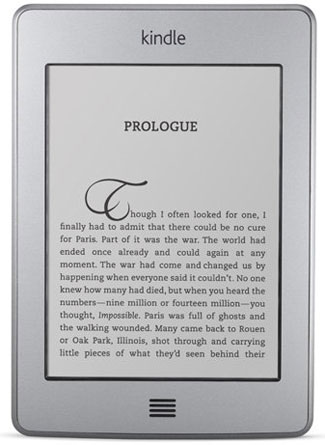
2) Kindle Touch. $99, $149. Literally, your normal Kindle reader, all touchpad.

3) Kindle Keyboard. $139, $189. Your normal Kindle reader with a keyboard.


Then you have a couple of other options, 3G + WiFi, or only WiFi. I have the Kindle Keyboard with 3G + WiFi, but to be completely honest with you, it's not entirely necessary. WiFi is everywhere you go- your home, your workplace, coffee shops... any of those places you can download books. 3G simply lets you download anywhere you want to go. Period. Obviously to get 3G and WiFi, it's a bit more pricey than simple WiFi.

Another couple of options you have is ads or no ads. The ad supported Kindles run a bit cheaper. These ads are placed in the sleep screen and at the bottom bar (I'd say about an inch big- if that) of your library screen. These ads will NEVER be in the middle of your book. So if you don't mind seeing a few ads here and there, it could be a cheaper option. If it bothers you, it's only like 20-30$ more to go without.

But don't necessarily discount the Fire. I also have it, and I tend to use my Fire more at home while my K3 Keyboard at work, it's still a snazzy little tablet with the ability to not only read but watch movies, play music/ games and run documents on.  To see the my full review of the Fire, click here. To see the (basic) specs, click here. Price runs at $199.

And just because I don't to leave it out, there is a Kindle DX, which is the Kindle 3 Keyboard only like 2-3xs the normal size. Which I personally don't think you need one that big, but it's all preference. (Plus it's like $379...)

Does that answer your questions? I hope I helped. Let me know if there's any other questions I can help with.


Wednesday, January 11, 2012

Wondering on Wednesday: Did You Know? (Kindle Fire Edition)

Today in this post we are going to discuss little tidbits you may or may not have known that you could do on your KFire.


Did you know....
- You can remove items from your carousal? 
Thanks to Amazon's recent update you can by holding down on your app, and clicking "Remove from Carousal". If you're unsure of what the carousal is, it is where all of your recent apps lie on your homepage.

- You the Amazon app market gives you one free app a day?
You can find this by clicking App -> Store -> and it will be on the front page.

- You can organize your favorites?
I mean the bookshelf that holds your favorite apps, it can extend as far as you want it to go and you can also hold and move things around to the position you want them.

- You can maximize your battery life by turning off applications you're not using?
Just like a cell phone Android device, anything you click and open runs until you shut it down. So to turn off this notifications, go to Settings --> Applications --> click on the app you want and press Force Close.

-You can check how much memory you have left?
If you click Settings --> Device you can see all of the memory you've used up and the battery life you have remaining.

- You can password protect your Kindle?
Don't want your kids getting in and playing with what's yours? Nosy co-workers? Simply go to Settings--> Security--> Lock Screen Password and set the password you want. Just make sure it's something you can remember because everytime you want to get into your Kindle, you'll need this password until you remove it. (To remove the password just go through the same steps.)

-You can create playlists with your music selection?
Simply go to Music--> Playlists--> Create new playlist!

- If you rent a movie from Amazon Video you have 30 days to watch this video?
You can also download directly to your device so that you're not stuck watching the movie only on WiFi? You can also view it from any streaming device such as the Roku. You don't need to have Prime to do this.

- You can bookmark webpages in Amazon Silk's browser?
Click on Web at the top of your Kindle, go to the webpage you want and click the banner at the bottom next to your Menu key.

- You can use it to read books!
With so many other things you can do with your Kindle Fire, its easy to forget the main reason we purchased this wonderful device to begin with!

Wednesday, December 21, 2011

Wondering on Wednesday: Nook Color Update

For those of you that have a Nook Color, the 1.4 update has been released.  For those of you that still haven’t received your update you can manually update your Nook [here].  The website walks you through step by step.

So, what are the features to this new update?  You can now stream movies and TV shows through Netflix. There are Nook Comics which features all of the Marvel comic books in top condition.  The Page Perfect Nook Books is meant to make the books still look as great as it does in print form.   There is now over new attachments like being able to read your book in portrait or landscape style.


My favorite update was being able to watch Netflix on my Nook, which was the first thing I tested when I updated it.  The videos stream great, the picture looks good, so far I have no complaints about it.  The one thing I was most disappointed about was that, unlike the Nook Tablet, Hulu Plus did not come with the new update like I thought it was supposed to.  Since I watch more new TV shows than old I may have gotten more use out of this feature.

How many Nook Color users out there have gotten there update yet?  Any fans?  Any haters?  Let’s chat about it!


Wednesday, December 14, 2011

Wondering on Wednesday: Finding the Deals

Recently I convinced one of my managers at work to let me create a Kindle e-mail group. Through this group I do many things that I do on the blog, plus I give news on the free/ cheap books for the day. So I thought for today I would tell you guys where I find those deals, that way, you can seek them out yourselves since I don't post things too often on here.

Kindle:
1) Kindle on the Cheap
This is a Facebook group that tells you the deals they have found for the day.

2) Free Kindle Books Plus a Few Other Tips
This is a blog found through Amazon. Michael Gallagher runs it and gives all free books. Occasionally he gives a few tips and things as well. He's great, I love this group so much that even when I got my Fire and I'm not using my Kindle 3 as much, I still stay signed up. It's $0.99/ month.

3) Kindle Books for a Buck (or Less)
Another blog provided through Amazon that Michael Gallagher runs. Does exactly what it says. $0.99/ month.

4) Free Kindle Books and How to Find Them
And yet another awesome blog from Michael Gallagher. It's $2.99/ month.

Nook:
I've been trying to find more ways to figure out where to find these deals, but I just can't find nearly as many Nook sales as I can Kindle. However I did find this on Nook website. [Click me] So bookmark the page because it changes daily.

Also, follow your favorite authors on Facebook/ Twitter. Especially your indie ones because they'll generally let you know deals that they are doing or their favorites are. I know I find many free books that way.  And right now, if you go to indieblowout.com they are having a bunch of books for super cheap prices. :)

So where do you find the deals that you come across? Leave a comment. We'll add it to our list and stick in it the "All Things Helpful" section that way you can always come back and find new places!

Wednesday, December 7, 2011

Wondering on Wednesday: Uploading Files to Kindle

Hello everyone!
Today I'm going to share with you how to upload PDF or MOBI on your Kindle. You think this sounds like a simple task, but as soon as I got my Kindle Fire I was so confused.

The Kindle only accepts MOBI and PDF files.
Now there are a couple of ways to go about doing this. For all devices (other than the Fire) you can use the USB cord and plug your Kindle into your computer and simply drag and drop the files into your Kindle folder. When you unplug, assuming you're under WiFi, your Kindle will refresh and the books will appear. For me using my Kindle 3 Keyboard, this worked 90% of the time. But when it didn't....

Every Kindle has an e-mail address. So if you have multiple Kindles, you have multiple e-mail addresses. To find this e-mail address go to amazon.com, click on "Digital Content" in the top right hand corner and log in if you haven't already. From there, click on "Manage your Kindle", then "Personal Document Settings" on the left side and you will see your Kindle address.
For instance mine is : sapphire2277_44@Kindle.com for my Fire and sapphire2277@Kindle.com for my K3 Keyboard.
Now open your normal e-mail account, attach the file you want to send to your Kindle and Send the e-mail. When you're under WiFi it will show up. If you have a Fire you may need to go to "Settings" and press "Sync" for it to show up, but it will.

So anytime you get a book on Smashwords, you can get it to your Kindle this way. Or if you have your grocery list saved on your computer and you want it on your Kindle you can do it this way as well. Also, something else to note is that with smaller files you won't be charged for sending the files over, but if a file is over a certain size, you could be charged. You can also set it up where Amazon can't charge you over a certain amount for transferring data. But in all honesty, in every situation where I've sent personal documents to my Kindle, I've never had this issue. And I've had a ton of books, lists and everything else from being a blogger. So typically, it's not something you should worry about, but it's something I still wanted to throw out there.

I was going to include how to do this on the Nook, but they don't accept files as well as the Kindle does therefore the process is a bit more complicated. I'm going to do some more research and play with M's Nook Color and let you guys know in a couple of weeks. Or if you have a Nook and know how, teach us! We'd love to hear from you.

Until next time,

Wednesday, November 30, 2011

Wondering on Wednesday: Nook Color Update

As you all know, on November 18th the Nook Tablet came out with a sleeker look and added features. (Click here to see our post on the Nook Tablet).  But many people, such as myself, only just recently bought the Nook Color.  But do not fret my fellow Nook Color fans, because at some point in December, Barnes and Noble will be launching update 1.4 for those with the Color.  With the update to 1.4, you’ll be able to access Netflix, Hulu Plus, Rhapsody, Nook Comics, and much more.
But my big question is, if they’re allowing those with the Nook Color to eventually have the same features as the Nook Tablet, then what’s the point in upgrading?  Although it does have some new features, such as being lighter and having more internal space, it really isn't too much different.  As for those that don’t have a Nook Color, in my personal opinion, the Nook Tablet would be the better buy/upgrade.

So what do you guys think? Has anyone gotten the Nook Tablet?  Let us know!

Wednesday, November 23, 2011

Wondering on Wednesday: Kindle Fire Review

I've been on Fire since last Friday and thought now would be a good time to see if you guys had any questions or concerns with purchasing this device. Here is my list of pros and cons:
Super Cool:
- Bright, colorful and backlit!
- Very quick
- "Bookshelf" layout for organization making the device easy to navagate through
- If Amazon doesn't have an app, chances are you can sideload it from the Android market fairly easily
- The price/ the size
- Great sound and picture for clear movie watching (Access to Hulu, Netflix and Prime)
- Magazine subscriptions/ kid books

Not So Super Cool:
- The glare when using my Fire outside or in a room with bright lights.
- No Hanging With Friends game
- No 3G. (No tablets have this though)
- The price for magazine subscriptions/ kid books
- A bit heavier

Overall, I think that this is the perfect tablet for someone who wants a simple, basic Android device. It also comes with a free month of Amazon Prime.  So I've been trying to find a good book to test out the new lending system Amazon has developed that you get when you subscribe to Prime but I have not found a single book in our genre outside of The Hunger Games series. That's a bit frustrating. The movies also don't seem to include much that isn't already on Hulu or Netflix and the TV series are mostly just season 1 that's available for free.

I was also stoked to get my school books on my e-reader. Turns out that no matter what site I get them on, the e-book rental is about $30.00 more than just renting the physical book. How does that make sense? So that won't be happening...
UPDATE on school books: This could be different for different people/ schools but when I went to get my books in e-format, I found out that it is in e-format, but not for your Kindle (or Nook). Instead you get it specifically for your computer. Their excuse is that e-readers are hefty enough devices to support textbooks with all of their photos and such. I don't think that's true but I don't make the rules...
No matter what, I won't be getting rid of my Kindle 3 Keyboard anytime soon. Nothing beats the lightweight, e-ink simplicity that baby brings to my life.  Not to mention how distracting it is to have all that extra stuff when you really need to be focusing on reading.

Have any of you gone out and gotten your Kindle Fire yet? What are your first impressions? Does anyone have any questions or concerns about the device?

Wednesday, November 16, 2011

Wondering on Wednesday: Twilight, Current Projects

Robert Pattinson and Kristen Stewart all supposedly have lives outside of the epic Twilight Saga. Here's what they've been up to and what movies to be expecting from them within the next year!

Robert Pattinson:
Bel Ami
"A chronicle of a young man's rise to power in Paris via his manipulation of the city's most influential and wealthy women." -IMDB
This movie is based of the novel Bel Ami by Guy de Maupassant.
Release Date: 2011


Kristen Stewart
Snow White and the Huntsman
"In a twist to the fairy tale, the Huntsman ordered to take Snow White into the woods to be killed winds up becoming her protector and mentor in a quest to vanquish the Evil Queen" - IMDB
Release Date: Summer of 2012


And I looked to see what Taylor Lautner is doing but he doesn't have much else other than Twilight lined up until 2013. So don't think I just forgot about you Team Jacob fans. :)
I personally am pretty excited about Snow White and the Huntsman. What about you?

Wednesday, November 9, 2011

Wondering on Wednesday: Nook Tablet

Guess what Nook fans?! On November 18th, Barnes and Noble is bringing out the brand new Nook Tablet.  It’s the Nook Color, already noted “the readers tablet”, and then some.

Old Favorite Features:
  • Adjustable reading text so that you can make the font bigger or smaller.
  • Thousands of apps from the android market.
  • Nook Friends where you can share what your reading with your friends on Facebook or Twitter.
  • WiFi for web and email.
  • Free Nook Support anytime you need a little help.
  • Pandora already preloaded.
  • Syncs between your Nook and your Nook apps so you never lose your place.
New & Improved Features:
  • There’s now 16 GB of built in memory in addition to the expandable memory slot that we all know and love from the Nook Color.
  • The battery life has been up graded to “more than the Kindle Fire”, upgrading from the Nook Colors 8 hours of battery life to 11.5 hours of battery life with 9 hours for video viewing.
  • Nook Comics will provide a large selection of your favorites for the first time on e-readers.
  • Netflix and Hulu Plus are preloaded onto the Nook Tablet with free trials included so you can watch your favorite movies and tv shows with the tap of the screen.
  • With all of this new stuff added, you’d think that the Nook Tablet would be much heavier than the already sort of heavy Nook Color but it’s now thinner and lighter than not just the Nook Color but it’s a third lighter than the other leading tablets.
  • The Nook Tablet now has a built in microphone so that you can record yourself reading for your kids to replay later.  

So what do you guys think?  Is this in your purchasing future?  Although I’m excited Barnes and Noble brought out something new in time for Christmas, I personally don’t plan on upgrading, especially since they’ll be offering some of the upgrades that they’re putting in the Nook Tablet, such as HD entertainment, for the Nook Color, which is pretty awesome of Barnes and Noble.  
 
Love, your team Nook writer, 

Wednesday, November 2, 2011

Wondering on Wednesday: Book Swim

If you're anything like M and I, you spend hundreds of dollars on books a year. While it's gotten a bit better with owning an e-reader and the prices being cut, it's still pretty rough. Then we began to hear murmers about BookSwim....

BookSwim is like Netflix, only for books.
They have 4 different plans, all including unlimited reading, no due dates or late fees and no shipping fees.
1) Light Reader: 3 books out at a time/ $23.95 monthly
2) Casual Reader: 5 books out at a time/ $29.95 monthly
3) Avid Reader: 7 books at a time/ $35.95 monthly
4) Devout Reader: 11 books at a time/ $59.95 monthly
All you have to do is sign up, find the books you want to read, place them on your queue and they'll send the books to you as they're availible. Unfortunately BookSwim doesn't do anything with e-books or audiobooks.

Are you a college kid? BookSwim also has a way to rent textbooks, powered by bookrenter.com so you save up to 70%. And from what I see (I haven't used it yet, but I plan to this spring when I'm getting books for the semester.) it works just like Chegg. You rent the text book, they send it to you in a box, you keep the box and the book for around 6 months and then you return the book via UPS in the package it came in. Simply print out the return tickets.

Next week we'll feature another program very similar to this one.
Do you use any programs to rent books other than your local library?

Wednesday, October 26, 2011

Wondering on Wednesday: Renting Library Books (Nook)

A few weeks ago, the Amazon Kindle released that they can now rent library books. (To see how to, you can click here.) But long before the Kindle came around to the idea, the Barnes and Noble's Nook has been actually been able to. I apologize to all of you Nook owners for not posting this sooner but better late then never... here's your step by step how to:

First off, you're going to have to install Adobe Digital Editions, if you don't already have it on your computer. It's a completely free program and a pretty simple step by step process that they lead you through, just make sure that you use the same e-mail and password that you use for your Nook (which should be the same e-mail and password you use to access B&N's website).

Next, just like when you do this on the Kindle, you need to go to Overdrive.com. Once that loads...
1) Find the box that says "New to downloads?" and put in your zip code.
2) This will lead you to a page where you find the closest libraries to you, click on the one you typically go to.
3) Now click on the link it provides for you. For instance mine is:http://kyunbound.lib.overdrive.com/
4) Once you're in your library page, search through to find the book you want. Be sure you find the Adobe ePub format of the book.
5) Proceed from your Bookbag to Checkout.
6) Be sure to specify how long you want the book out by clicking on the drop down box. Then press "Confirm Checkout".

Now go ahead and download your selection into Adobe Digital Edition. Once it's downloaded it will pop up so you can view the book on your computer, this will work as an iTunes library for your books so to speak. If you haven't already, plug your Nook into your computer using a USB cord to transfer the book over. Once it's connected, you should see "Nook" show up in your left hand side bar, simply drag and drop the book from your libary over to your Nook connection on the side.

And TADA! You have officially downloaded a library book onto your Nook.

Have any of you guys done this before? What did you think of the process? To be honest, I still haven't done this on my Kindle due to my over abundant book supply of TBR, and the fact that I didn't really see many books I was interested in getting.

Also, what other things would you guys like to know? Anything we can cover that we haven't already?

Wednesday, October 19, 2011

Wondering on Wednesday: Kindle Update!

For those of you with the K3, or what is now called ridiculously the Kindle Keyboard, we're getting an upgrade to version 3.3. As always, the update is completely free. All you need to do is turn your Kindle on, click "Home" to access your library and turn your WiFi on if it wasn't already. Then press "Menu", "Sync & Check for Items" and the next time your Kindle goes into sleep mode, it should automatically upgrade. If for some reason this upgrade doesn't happen naturally, during the last one we had I ended up having to do mine manually, you can do it yourself here. That's a link to Amazon's website where they basically tell you which download is the one for you depending on which Kindle Keyboard you have. But basically after downloading that file, simply plug in your e-reader to the computer, drag and drop the update into your Kindle folder (My computer --> Kindle), disconnect, get to the "Menu" then "Update Your Kindle".

Tada! Let me know if you have any questions or issues with the process and I'll be more than happy to look into it for you.

What this upgrade includes:

- Easier access to archived personal documents
- Whispersync for personal documents
- AmazonLocal deals on the Keyboard with Special Features
- Voice guide short cuts

So it's nothing to big or drastic, probably things I personally won't even use to often but it's nice to know they still love us Kindle Keyboards with all of these new snazzy Kindles coming our way.

Have any of you done the AmazonLocal? It seems to be Amazon's version of the Groupon...

Sunday, September 18, 2011

Following on Blogger

I've had a few people confused on the concept of "following" someone on Blogger. So I thought I'd take a couple of minutes today and hopefully clear some things up for those of you wondering. We'll start out simple...

What is following?
Say you really love The Ink Puddle and you want to tell me and all of your friends that you love The Ink Puddle. This is one way to do that.

How do I follow a blog?
In the top left hand corner of every blogger blog there is a link that says "Follow", click that and a pop up will come up with your Google ID, and the options to follow publicly or privately. I generally choose to follow publicly.
The other way to do that is to go to Blogger's site and right under your reading pane there will be a "Add" or "Manage" button, click "Add" and place the URL of the site you want to follow in that area and press "Next".

So what now?
Now you are added as a follower to that blog. Which means that every post that they do, it'll come up in your reading pane.

Reading pane?
If you go to Blogger's website and log in using your Google account, you can view all of the blogs you follow in their most recent posts. Cool thing is, you can follow more than just blogger blogs here. You can follow anyone from any site. Personal, wordpress or anything.

Why follow?
Following is a bit encouraging for the writers of the blog itself. I can say this from personal experience with The Ink Puddle. Like it's great to know that I have 1500+ views in a little over 2 months, but it's even more fantastic to know that you have fans who are dedicated and truly want to hear about what we're doing next, other than just people dropping by. (Don't get me wrong, any number of views in a day make me jump for joy.)
It's also easier for you to view the posts that you want to see.

I know that's not too much information for the day but since I'd had a few questions I wanted to take some time to answer that question. So does that help? Is there anything more you guys want to know?

Fill us in and we'll get back to you. :)
Have a great Sunday guys,
J

Wednesday, August 17, 2011

Autographing on E-Readers

I know I briefly talked about this last week, but I thought I would give you guys the details today. Kindlegraph is a website that’s designed to give authors the chance to autograph their books on your Kindle. There are currently around 5,000 books and 1,000 authors but the numbers are growing daily. 

Here's how to do it:
1)      Sign in on Kindlegraph’s website with your Twitter account.
2)      Search either by books or by author.
3)      Find the book you want the author to autograph and make your request!

When the Kindlegraph comes through, it’ll look like this:

Cool, right? I’m super pumped about this feature. Of the people we’ve reviewed so far, Rose Pressey, Wenona Hulsey, S.W. Benefiel and J.L. Bryan, all have books available to be Kindlegraphed.

The Nook also has a feature for this as well. Only theirs is an app you can download onto the Nook Color that allows authors to actually sign the book, using the stylus! This way, it’s literally an autograph, just as if the writer had used a sharpie to sign a book. Also, if you loan the book to a friend, they can view the signature as well. The Sony e-reader works the same way, only theirs is a bit slower due to the ink technology they use.

So there are all kinds of ways people are trying to keep E-readers just as awesome as books, if not better. What do you guys think of the autographing? Have you tried it? What kinds of advances would you like to see happen?

Monday, August 15, 2011

Lets Face It, Accidents Happen- Part 2

Replacing Your Battery

If your E-reader’s life seems to be getting shorter and shorter, it may be time for a new battery. While you can have Amazon do replace the Kindle battery for you for $59, you can also do it yourself. (And who doesn’t like to save money?!) You can find replacement batteries on Amazon or Ebay for relatively cheap. Once you have the battery here is how you replace it on the Kindle:

-          Turn your Kindle off by holding down the power button until the Kindle screen goes blank.
-          Face your Kindle screen down on a soft, protective surface.
-          Slide the gray cover.
-          Slowly (with your fingers-NO tools) lift up the battery and notice the direction the notches lay.
-          There will be white cords attached, gently pull this white connector back until it is disconnected from your battery.
-          Place new battery, pushing white connector cord back onto the battery.
-          Slide the cover back on gently until it snaps into place.

Now onto the Nook! 

-          Turn off your Nook.
-          In the small crack between where the top and bottom crease meet, pry open carefully using your fingers.
-          Use a Phillip’s screw driver to unscrew the battery cover. Once the screw is out, pull the battery out by placing your finger in the small crescent shaped hole.
-          Now replace the new battery in the same position where the old one was.
-          To put the cover back onto the Nook, align the bottom piece with the top and press gently until you hear a “click”.

Now hopefully if you’re put in the position to need to do replace your battery you will know how! Or if a friend or family member needs to, you can always impress them with your awesomeness.

-J

Note: We are obviously not liable for any damage done  while trying to replace your battery.